Your passwords on every device, with no cloud
Most password managers keep your vault on someone else's server. It's convenient, and it means trusting a company with the most sensitive file you own, and trusting it to stay online. There's another way to have your passwords on every device: keep them in a single encrypted file, and let your devices pass that file to each other directly.
This guide builds exactly that, with KeePassXC on the computer, the usual KeePass apps on the phone, and Syncthing moving the file around. Then it goes further than most guides do. You'll add a server that stores the vault without being able to read it, break the setup on purpose to see how it recovers, add a YubiKey, and write down a plan for the day everything goes wrong.
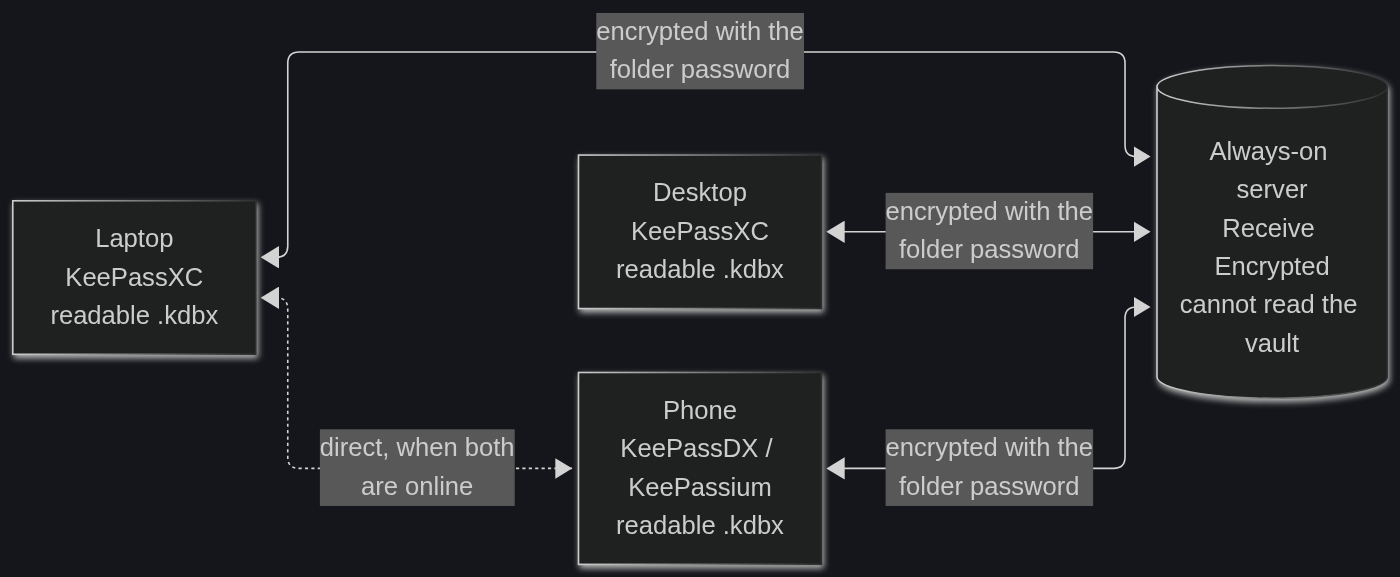
The pieces #
KeePassXC is a free, open source password manager for Linux, Windows and macOS. Everything lives in one file with the .kdbx extension, encrypted with your master password. There's no account and no server. Open the file, type the password, and your entries are there.
The .kdbx format is shared by a whole family of apps, so the same file opens on the phone too:
- Android: KeePassDX or Keepass2Android
- iPhone and iPad: KeePassium or Strongbox
Syncthing keeps folders in sync between your own devices. Each device has an ID, you tell them about each other once, and from then on they exchange changes directly, encrypted with TLS. There's no account and no cloud in the middle.
Put the two together and you get a vault that exists only on machines you own, kept in sync without anyone else's server.
Step 1: create the database #
In KeePassXC, go to Database → New Database. Give it a name, keep the encryption settings at their defaults and pick a strong master password. A passphrase of five or six random words works well, and KeePassXC's password generator can make one for you.
The defaults matter. A new database in KeePassXC uses the KDBX 4 format with Argon2, a key derivation function that makes every password guess slow and memory hungry. You can check it under Database → Database Settings → Security → Encryption Settings, with Advanced Settings ticked.1
Save the file in a folder that will hold the vault and nothing else, for example ~/Vault/passwords.kdbx. That folder is what Syncthing will share.
Two settings in Tools → Settings → General help a lot here:
- Automatically save after every change: keeps the file on disk always current, so Syncthing always has the latest version to send.
- Automatically reload the database when modified externally: when Syncthing replaces the file with a newer one from another device, KeePassXC reloads it on its own.
Step 2: sync the folder #
Install Syncthing on each device:
- Linux: from your distribution's packages, or from syncthing.net.
- Windows and macOS: the downloads at syncthing.net.
- Android: the official app was discontinued at the end of 2024, so you'll need a community app. Syncthing-Fork is the most common one; BasicSync and Syncthing Tray are other options. The scene has been a bit turbulent, so check what's current before you choose.
- iPhone: there's no official app. Möbius Sync is the usual choice, and KeePassium or Strongbox can open the vault from its folder through the Files app.
Then connect them. Syncthing's web interface lives at http://127.0.0.1:8384 on desktops. On each device, use Add Remote Device and paste the other device's ID (Actions → Show ID shows it as text and as a QR code, which is handy for phones). Then share the Vault folder with the other devices.
One more setting on every device that holds a readable copy: open the folder's File Versioning tab and pick Staggered File Versioning. When a newer file arrives from another device, Syncthing moves the old one into a hidden .stversions folder instead of throwing it away. You'll need this in the tests below.
At this point you have a working setup. It has one weakness, though: Syncthing only syncs when two devices are online at the same time. Change something on the phone at the bus stop, turn on the laptop at home with the phone in airplane mode, and the laptop has nothing new.
Step 3: a server that holds the vault without reading it #
The fix is a device that's always on, so every other device can drop changes there and pick them up later. Any small server or always-on machine works. The interesting part is that this server doesn't need to be trusted.
Syncthing has a feature called untrusted devices. You give the folder a password when you share it with the server, and from then on everything sent to the server is encrypted with that password: the file contents, the file names and the folder structure.2 The server stores, sends and receives the data like any other device, but it has no way to read it. Your trusted devices encrypt on the way out and decrypt on the way in.
On the server:
- Add your laptop and your phone as remote devices.
- When the laptop offers the
Vaultfolder, accept it and, in the folder's Advanced tab, set Folder Type to Receive Encrypted.
On the laptop and the phone:
- Edit the server's device settings and, in the Advanced tab, tick Untrusted. From then on Syncthing refuses to share a folder with that device without a password, so a forgotten setting can't send the vault there in plain text.
- Edit the
Vaultfolder, open the Sharing tab, tick the server and type the encryption password. Use the same password on every trusted device.
That password goes on your recovery sheet (more on that later), together with the folder ID shown in the folder settings. Syncthing builds the encryption key from both.
Here's what the server ends up holding. The vault is in there, but under a name like 5066N9B4M9N42O1H2S1L4AAQDMIS1ICC7L0MRC1UIMDR1, its contents are random bytes, and even its date is a placeholder (13 February 2009) that says nothing about when you last changed it:
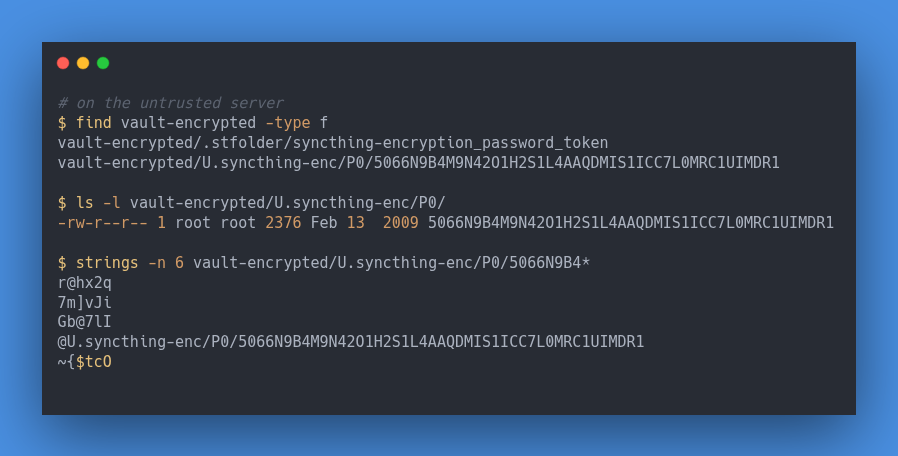
So the vault is now encrypted twice on that server: once by KeePassXC, with your master password, and once by Syncthing, with the folder password. Someone who breaks into the server gets neither.
And the phone at the bus stop is no longer a problem. In the test setup used for this post, the laptop was turned off, an entry was added on the phone, the phone was turned off too, and only then was the laptop turned back on. It got the new entry from the server, without the two devices ever being online at the same time.
Breaking it on purpose #
Here are four bad days, run for real on a test setup: three Syncthing nodes playing a laptop, a phone and an untrusted server, with keepassxc-cli doing the edits.3
Test 1: two devices, two different changes #
The scenario: the server is down, or you're offline. You add an entry on the laptop, then add a different entry on the phone. Later, everything reconnects.
In the test, the laptop added "Train tickets" and the phone added "Pharmacy", with the server off. When the server came back, both devices ended up with this:
passwords.kdbx passwords.sync-conflict-20261120-000329-QIV3XUS.kdbx
Syncthing doesn't know what's inside the file, so it can't combine the two versions. It keeps the newest one as passwords.kdbx (the phone's, with "Pharmacy") and saves the other one beside it as a conflict copy (the laptop's, with "Train tickets"). Nothing is lost, but the vault is now split across two files.
KeePassXC knows how to put them back together. Open passwords.kdbx, go to Database → Merge From Database and pick the conflict copy. KeePassXC matches entries by their internal IDs, adds what's missing and keeps the newest version of anything changed on both sides. From the terminal, it looks like this:
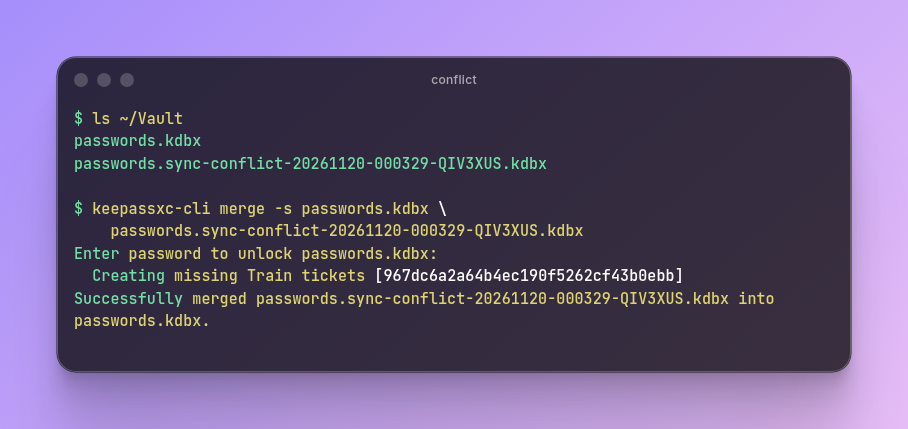
Then delete the conflict copy. Syncthing removes it from the other devices too, and the merged vault goes everywhere.
One warning came out of this test by accident. In an earlier run, the folders had been created by hand in Syncthing's config file, and that left a setting called Max Conflicts at 0. With 0, Syncthing doesn't create conflict copies at all: the newest file silently wins and the other change is gone. In that run, an entry really disappeared. Folders created through the web interface get the default of 10, which is what you want. To check yours, open Actions → Advanced, find the vault folder and look at Max Conflicts.
Test 2: an entry deleted for good #
The scenario: you delete an entry, then empty the recycle bin, then realize you needed it.
KeePassXC's recycle bin is the first safety net, so check there first. If it's already empty, the deletion has synced to every device, and the vault no longer has the entry anywhere.
Versioning is the next net, with one detail that's easy to miss: Syncthing only keeps versions of changes that arrive from other devices. In the test, "Bank" was deleted on the laptop. The laptop's .stversions folder had nothing, because the change was local there. The phone's had the previous file, because for the phone, the change came from outside:
.stversions/passwords~20261120-000415.kdbx
So always look for old versions on a device other than the one where the mistake happened.
To bring the entry back, don't replace your current vault with the old file, or you'll lose everything you changed since. Merge the old version into the current one instead, the same way as in test 1. In the test, the merge reported Creating missing Bank and kept every newer entry as it was.4
Test 3: every device is gone #
The scenario: the laptop dies, the phone is stolen, all on the same week. The only copy left is the encrypted one on the server.
Syncthing can decrypt that copy on any trusted machine with the folder password:
syncthing decrypt --password='your folder password' --to=restored vault-encrypted/
In the test, it printed Plaintext filename is "passwords.kdbx", and the restored file opened normally with the master password. With a wrong password, it stopped with an authentication failed error.
That's a full recovery from a machine that never could read the vault. It also shows exactly what you need to keep safe: the folder password, the folder ID and, of course, the master password.
Test 4: the phone is stolen #
This one is about what the thief can and can't do.
They have the phone, and on it, a copy of the .kdbx. Without your master password (and your YubiKey, once you add one), that copy is useless. The weak point is the phone's screen lock and the app's quick unlock: if the thief can unlock the phone and the app opens with a fingerprint or a PIN, they're in. So set the KeePass app to lock itself quickly, and don't let its quick unlock be weaker than the phone's own lock.
What to do, in order:
- On the server and your other devices, remove the phone in Syncthing (Edit the device → Remove). It stops receiving new versions of the vault.
- If there's any chance the master password was seen, change it. Keep in mind that the stolen copy still opens with the old password, so also change the passwords of your most important accounts, starting with email.
Adding a YubiKey #
So far, the vault is protected by one secret: the master password. A YubiKey adds a second ingredient that can't be copied from your head or guessed.
KeePassXC uses the YubiKey's challenge-response mode. When it opens the database, it sends a challenge to the key, the key answers with an HMAC-SHA1 of that challenge, and the answer is mixed into the master key together with your password. Without the physical key, the right password still doesn't open the file.5
Program two keys, not one #
If your only YubiKey breaks, your vault is gone. So program two keys with the same secret, and write the secret down.
First, generate a secret of 20 random bytes and write it on paper:
openssl rand -hex 20
Then program it into slot 2 of each YubiKey, with touch required:
ykman otp chalresp --touch 2
Slot 2 is the usual choice because many YubiKeys come with slot 1 already in use. Run the same command with each key plugged in, and keep the spare somewhere other than your keychain. A YubiKey doesn't let anyone read the secret back out, so the paper copy is the only way to make a replacement later.
Add it to the database #
In KeePassXC, go to Database → Database Settings → Security, choose Add additional protection, then Add Challenge-Response, and pick the key. From then on, unlocking needs the password and the key, and so does saving: KeePassXC asks for a touch every time it writes the file.
That last part matters in a synced setup. Every device that edits the vault needs a YubiKey there, so think about the phone before you commit:
- iPhone and iPad: KeePassium and Strongbox both support challenge-response. On the iPhone, an NFC YubiKey works inside the app, and the Lightning model works on both iPhone and iPad.
- Android: KeePassDX talks to a YubiKey through a separate driver app from the same developer, and Keepass2Android uses an app called ykDroid. NFC support depends a lot on the phone, so test it before you rely on it.
The command line works too, with -y 2 (slot 2) on any keepassxc-cli command.
Who protects you from what #
With every piece in place, here's what happens in each situation, and which layer does the protecting:
- Someone steals your locked laptop: the
.kdbxencryption. They need the master password and the YubiKey. - Someone uses your laptop while the vault is unlocked: nothing in this setup. Set KeePassXC to lock after inactivity and when the session is locked (Tools → Settings → Security).
- Someone breaks into the server: Syncthing's encryption, and behind it, the
.kdbxencryption. They can see roughly how big the file is, and they could delete it, but your devices still have their own copies and versions. - Someone gets a copy of the
.kdbxfile: the master password, made expensive to guess by Argon2, plus the YubiKey. An offline file can be attacked forever, which is why a long passphrase matters more here than anywhere else. - Your phone is stolen: the phone's lock and the app's lock, then removing the device from Syncthing.
- Malware on a computer while the vault is open: nothing here can stop it. Keep the system updated and the vault locked when you're not using it.
- You lose the YubiKey: the spare key, or the secret on paper.
- You forget the master password: nobody. There's no reset, no support line, no recovery email. Read the next section.
The day everything disappears #
A vault with no cloud and no company behind it has one real risk: you, locked out of it. The answer is boring and works well. Prepare three things.
A recovery sheet. One sheet of paper, kept somewhere safe at home, with:
- the master password;
- the YubiKey secret (the hex string from
openssl rand); - the Syncthing folder password and folder ID;
- the address of the server that holds the encrypted copy.
Keeping a password on paper sounds wrong, so compare the risks. For the sheet to hurt you, someone has to get into your home, find it and understand it. Forgetting your master password is far more likely, and it's final. A sealed envelope in a drawer you don't open often is enough.
A cold copy. Once a month, copy passwords.kdbx to a USB drive that stays unplugged. It's already encrypted, so the drive needs no extra protection, and it covers the case where a mistake syncs everywhere before you notice.
A yearly drill. Once a year, on a computer that has never had the vault on it, try to get back in using only the sheet and the cold copy: install KeePassXC, open the file from the USB drive with the password and the spare YubiKey, and decrypt the server copy with syncthing decrypt. If any step fails, you found the problem on a calm day.
Beyond passwords #
The same file can do a few more jobs. Each deserves its own post, so here's just the outline:
- SSH keys: KeePassXC can hold your SSH private keys and add them to the system's SSH agent while the vault is unlocked, then remove them when it locks. The setting is in Tools → Settings → SSH Agent, and from version 2.8 it can generate new keys too.
- TOTP codes: KeePassXC can generate the six-digit codes for two-factor logins (right-click an entry → TOTP → Set up TOTP).6
- Scripts:
keepassxc-clireads the vault from the terminal.keepassxc-cli show -s -a Password passwords.kdbx Emailprints one password,keepassxc-cli clip passwords.kdbx Emailcopies it to the clipboard for a few seconds, andkeepassxc-cli show -t passwords.kdbx Emailprints the current TOTP code.
KeePassXC 2.8 also added a Remote Sync option, which downloads a copy of the vault with a command you configure (scp, for example), merges it into the open database and uploads the result. It only runs when you trigger it from the Database menu, so it's a different tool from Syncthing's always-on sync. For a vault that stays current on every device without you thinking about it, Syncthing is the better fit.
-
The command line is a different story. In the test setup, a database created with
keepassxc-cli db-create(version 2.7.6) used the older AES-KDF instead of Argon2. If you create yours from the terminal, runkeepassxc-cli db-infoand check the KDF line. -
Syncthing's documentation still calls untrusted devices a beta feature. The server can't see names or contents, but it can see the folder ID, the folder label and the approximate size of each file.
-
Syncthing 1.27 and keepassxc-cli 2.7.6, from Ubuntu's packages, all on one Linux machine. The current Syncthing is 2.1, and its documentation describes the same conflict, versioning and encryption behavior used here.
-
Staggered versioning keeps one version per 30 seconds for the first hour, one per hour for the first day, one per day for the first month and one per week after that.
-
Strictly speaking, this isn't two-factor authentication, because there's no server checking a second factor. The YubiKey's answer becomes part of the encryption key itself, which is why the file can't be opened without it.
-
KeePassXC's own documentation warns that keeping TOTP codes in the same database as the passwords removes the benefit of two-factor authentication, because whoever opens the vault gets both. A separate database for TOTP, with its own password, keeps the two factors apart.